Hanwha Wisenet QRN-830S Review & Setup Guide
Why the Hanwha Wisenet QRN-830S is a top budget 8-channel PoE NVR for Chicago homes and SMB—plus step-by-step setup tips, DHCP clarity, and P2P QR remote access.
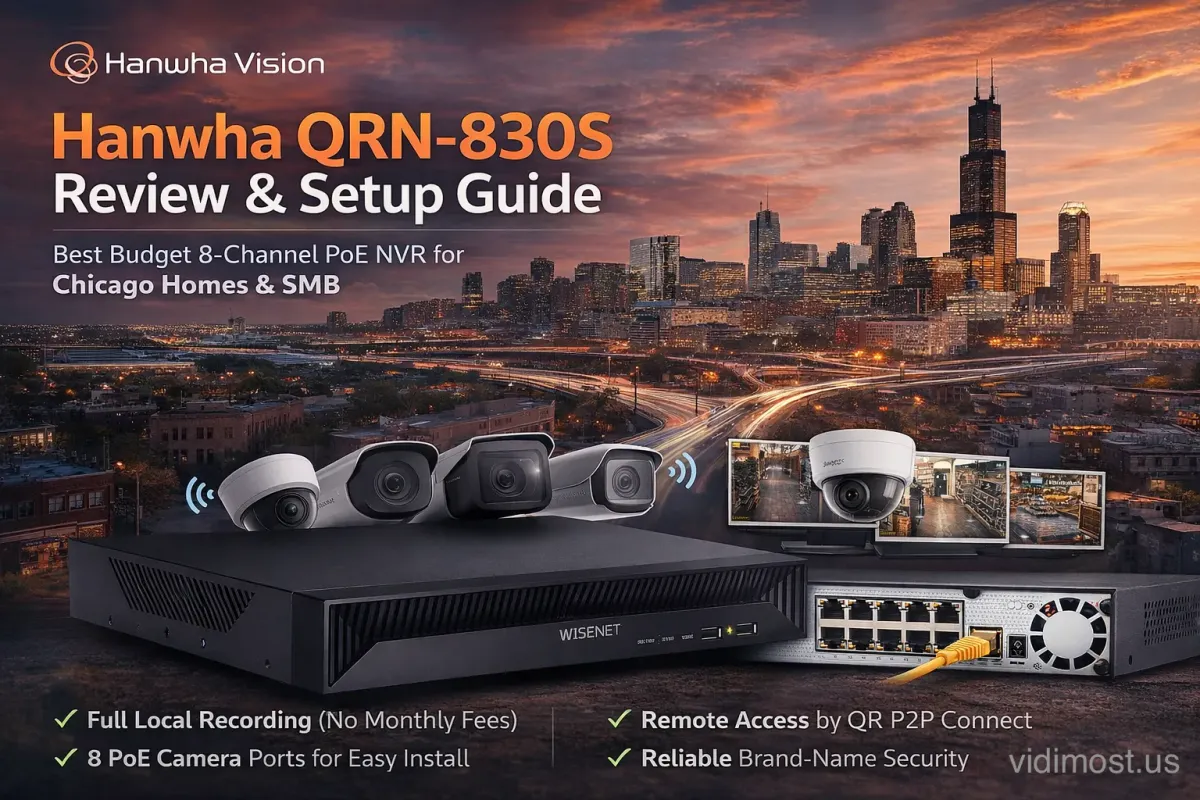
One of the Best Budget Brand-Name 8-Channel PoE NVRs for Chicago Homes & Small Businesses
If you want a reliable, brand-name NVR that doesn’t blow the budget, the Hanwha Wisenet QRN-830S is a standout. It’s a compact, professional-grade recorder with 8 channels and built-in PoE, making it a smart choice for Chicago-area home security systems and small-to-medium business installs.
Even if you only need 4 cameras today, going with an 8-channel NVR is often the smarter move. Cameras get added all the time—back door, garage, parking angle, delivery entrance, or a better view of a gate. Buying an 8-channel recorder up front keeps the system expandable without forcing a full upgrade later.
This guide focuses on real-world setup details that save time and prevent long-term frustration: device naming, DHCP/network behavior, time accuracy, recording strategy, camera onboarding, HDMI limitations, and easy QR-based remote access.
Why the QRN-830S is such a strong “value” NVR
A great budget recorder from a trusted brand
The QRN-830S delivers serious reliability at a budget-friendly price. In the field, properly installed NVR systems like this can run for years with minimal maintenance.
No monthly fees, no cloud dependency
One of the biggest advantages of a Hanwha NVR-based system is that you can build a complete security camera solution with no monthly payments. Video is stored locally on the NVR, and once configured, the system can be close to “set it and forget it.”
Most of the time, “maintenance” means:
- occasional HDD/SMART health checks
- confirming time settings are correct
- updating firmware only when appropriate
For many Chicago homes and SMBs, this is exactly the right balance of ownership, privacy, and long-term cost control.
Perfect size for homes and SMB
Eight channels is “a lot” for most residential installs—and it’s also a sweet spot for small businesses (retail, offices, restaurants, small warehouses, multi-unit buildings). You can start small and grow without replacing the recorder.
Step-by-step setup tips (real-world installer priorities)
1) Wire it correctly (avoid the #1 networking mistake)
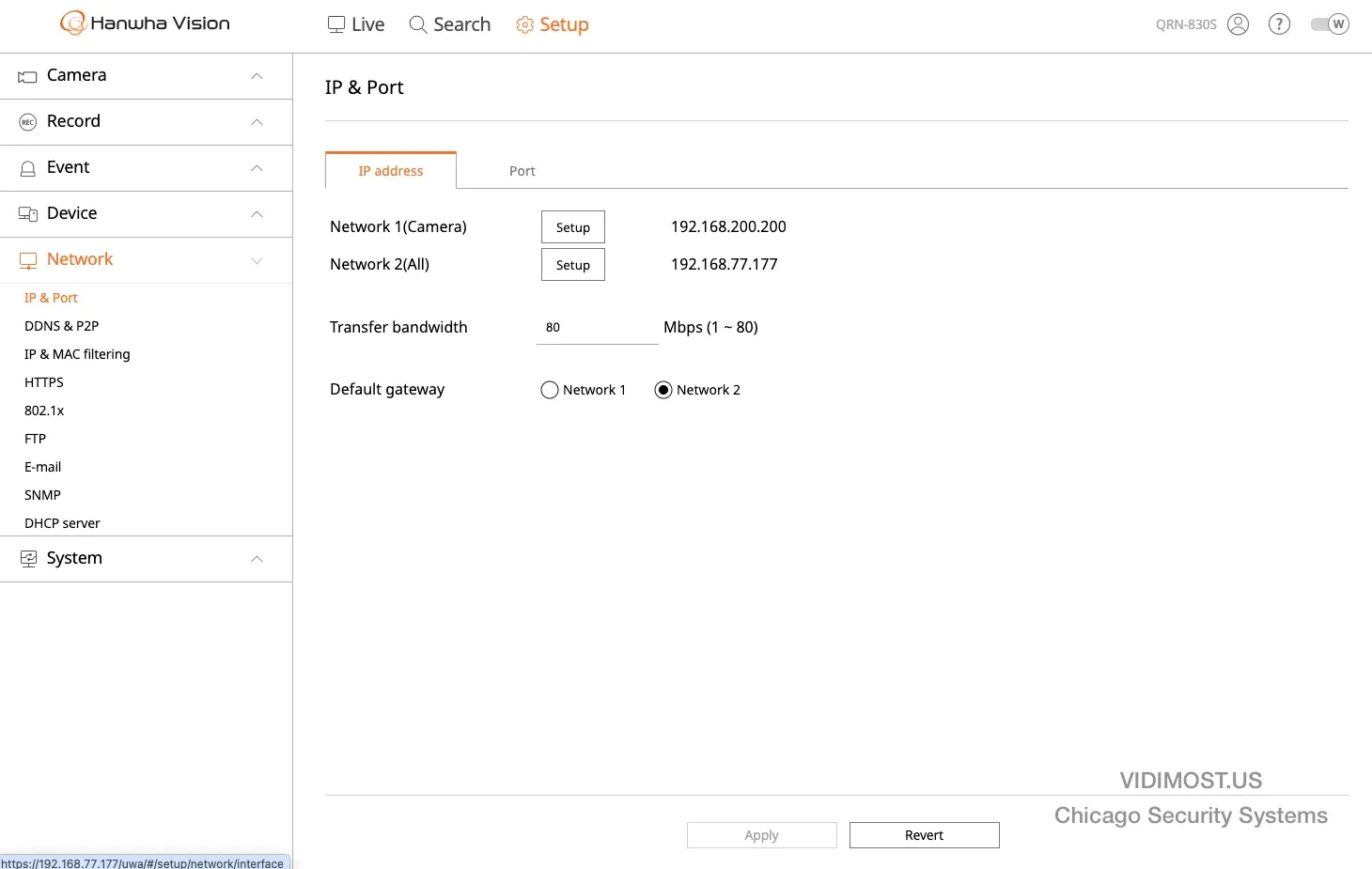
The QRN-830S effectively has two “network sides”:
- Network 2 (uplink / Internet / client LAN): connects to the router/switch for remote access
- Network 1 (camera side via PoE ports): connects to cameras only

Best practice wiring:
- Plug your router/switch into Network 2
- Plug cameras into the PoE ports
- Avoid connecting the PoE camera side to the customer LAN unless you have a deliberate VLAN/network design
This single concept prevents most “cameras randomly disappear” and “network chaos” situations.
2) Rename the NVR (so the mobile app is clear)
If a client has more than one recorder (or multiple sites), default device names become confusing fast.
Best practice device name examples:
Chicago - Office - Main NVRChicago - Retail - CamerasWarehouse - NVR 01
Where to do it:
System → System management → Device name → Apply
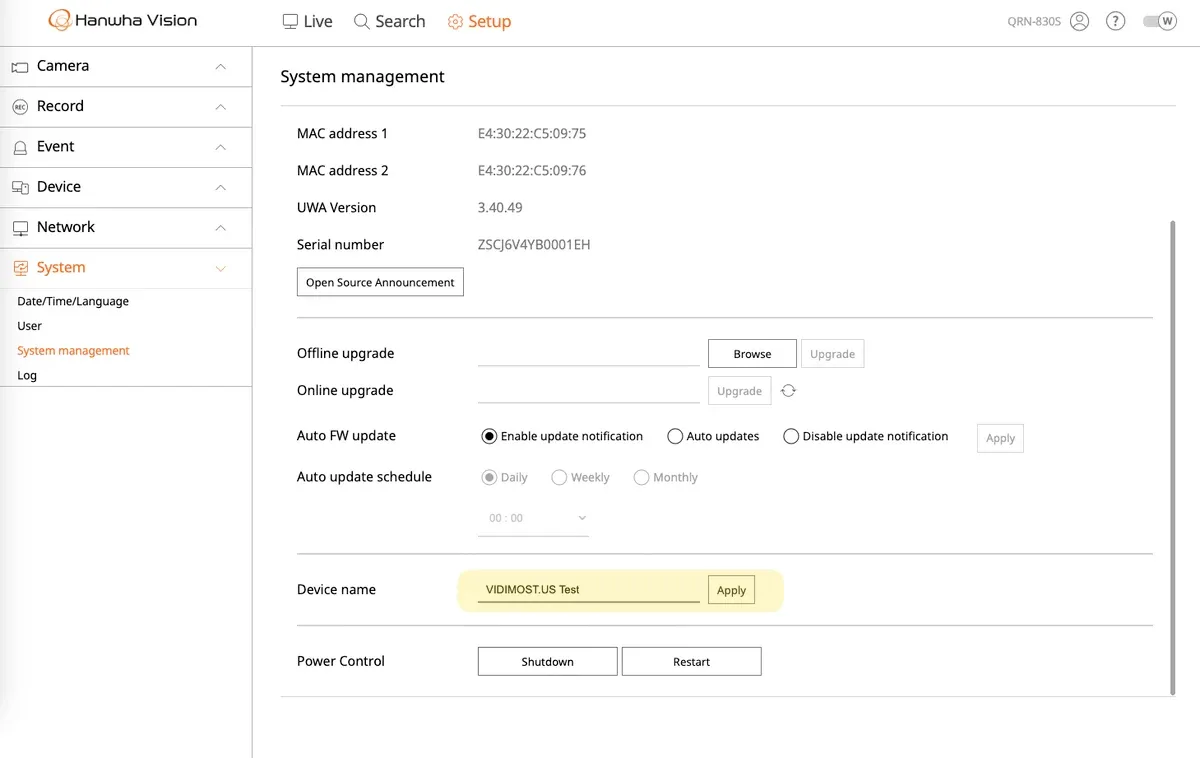
Hanwha QRN-830S system management page where you can rename the recorder for mobile app identificationPro tip: Keep naming consistent with camera channel names. It makes support easier for you and the client.
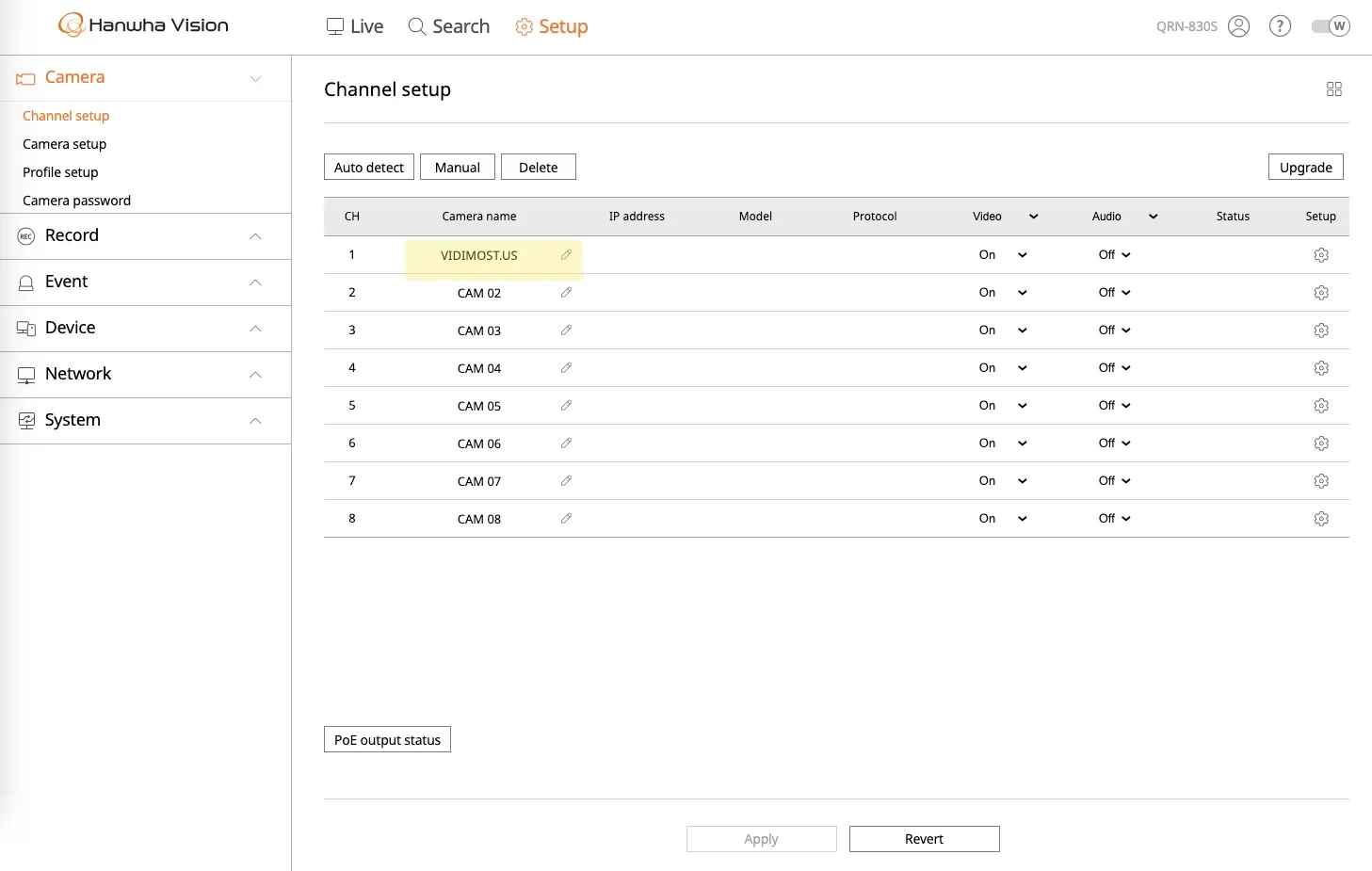
3) Name your cameras (channel titles) so the system is actually usable
One of the simplest setup steps is also one of the most valuable: rename each camera channel.
If you leave everything as “CAM 01 / CAM 02,” the system may work—but it becomes frustrating when someone needs footage fast.
Good channel naming examples:
Front DoorBack DoorGarageLobbyRegisterLoading DockParking Lot - East
Where to do it:
Camera → Channel setup
Insert screenshot here:
4) Keep Date & Time accurate (critical for events and evidence)
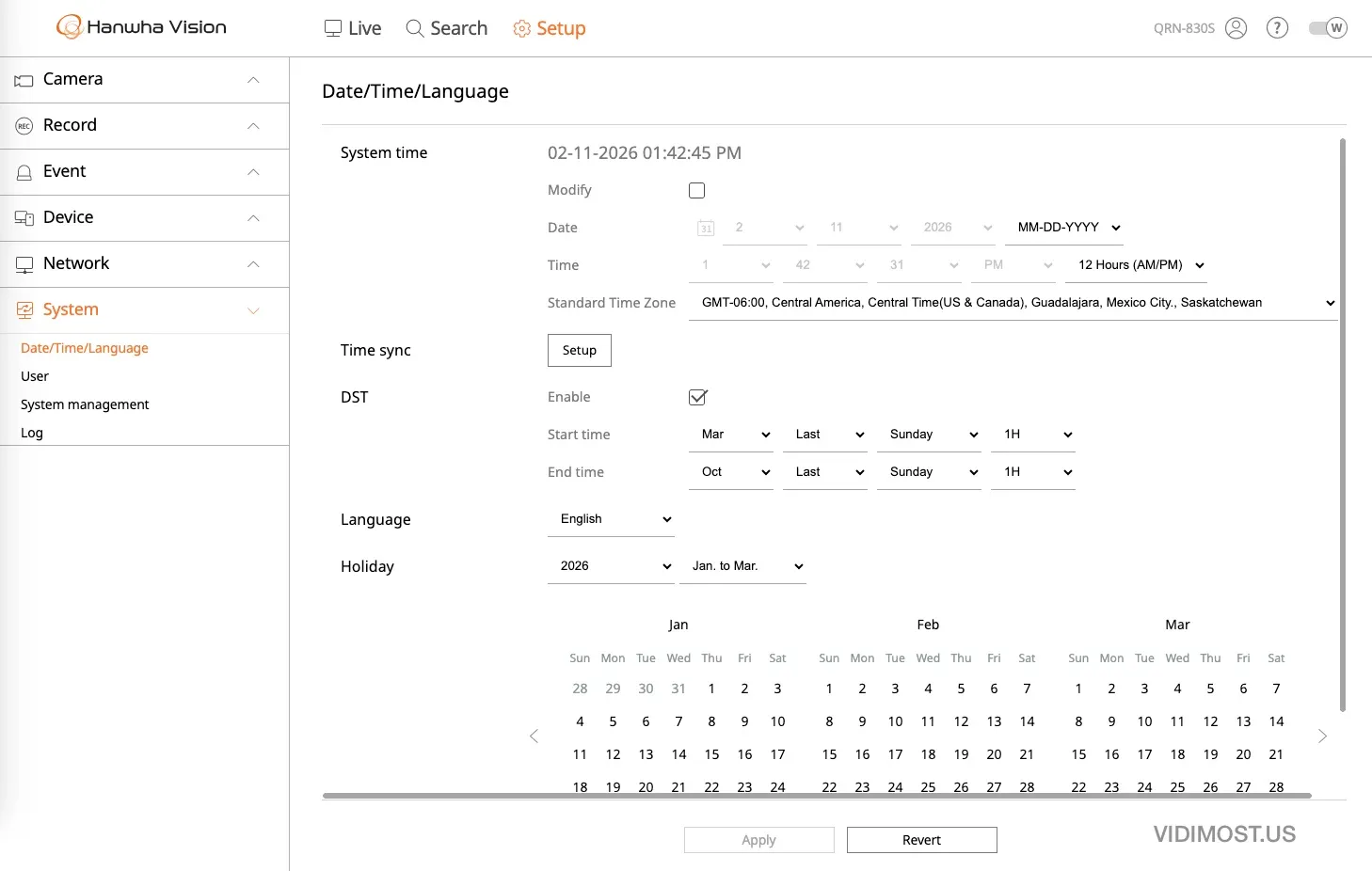
Time accuracy isn’t optional. It’s essential.
If the time is wrong—or if DST wasn’t applied—you can:
- search for an incident and “not find it”
- think footage is missing when it’s not
- end up with confusing timestamps during investigations
For event-based recording, the exact timestamp can matter down to the minute—and often close to the second.
What to set correctly:
- Time Zone: Central Time (for Chicago)
- DST: enabled and correct
- Time Sync (NTP): recommended so the NVR stays accurate automatically
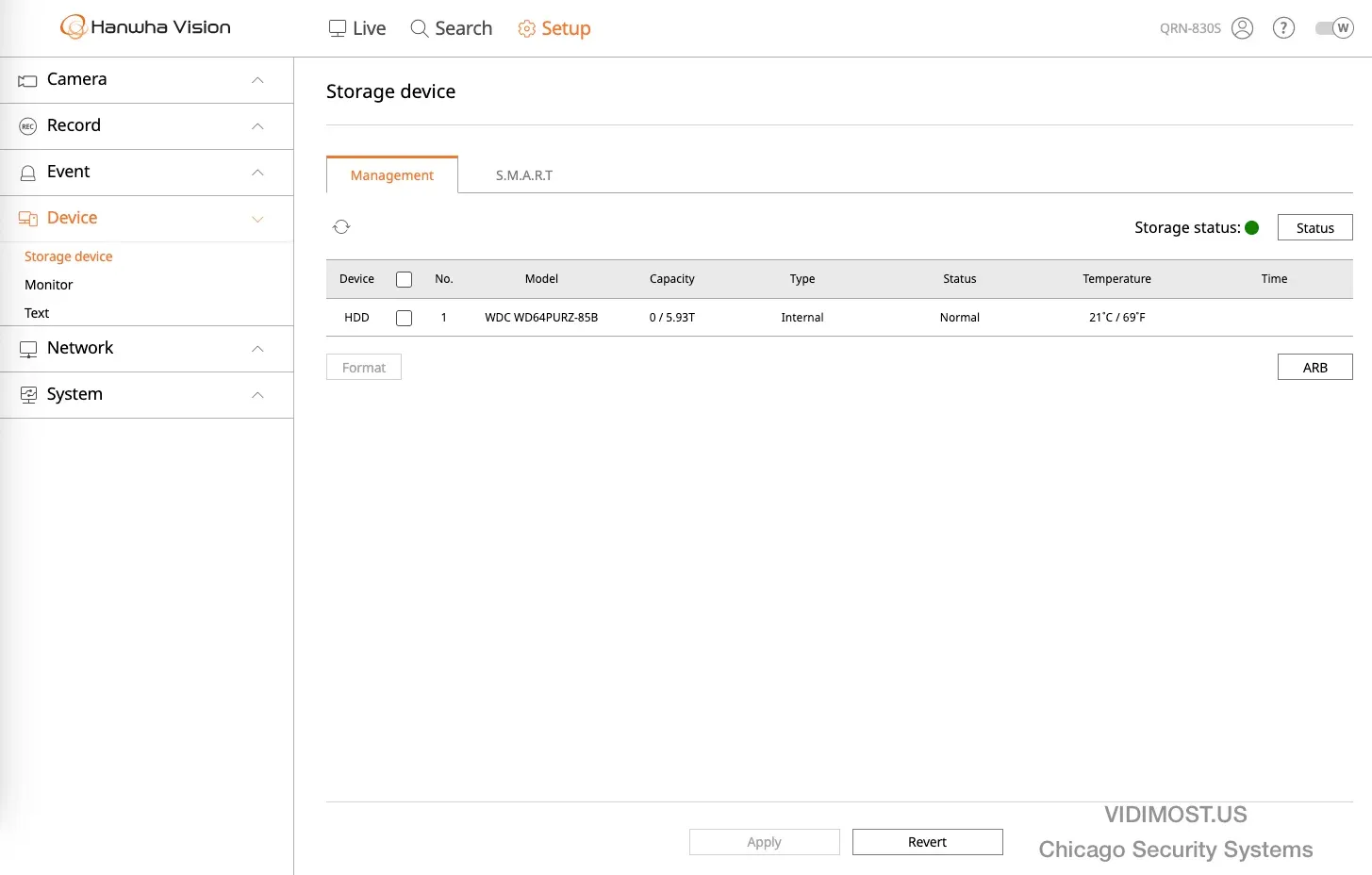
5) Storage: confirm drive health and recording behavior
Most “NVR problems” eventually come down to the hard drive. Make sure storage is set up correctly from day one.
What to verify:
- the HDD is detected
- capacity matches expectations
- overwrite is enabled if you want continuous recording without manual cleanup
- SMART/health indicators look normal
6) DHCP explained (camera DHCP ON, uplink DHCP OFF)
This is one of the most common confusion points.
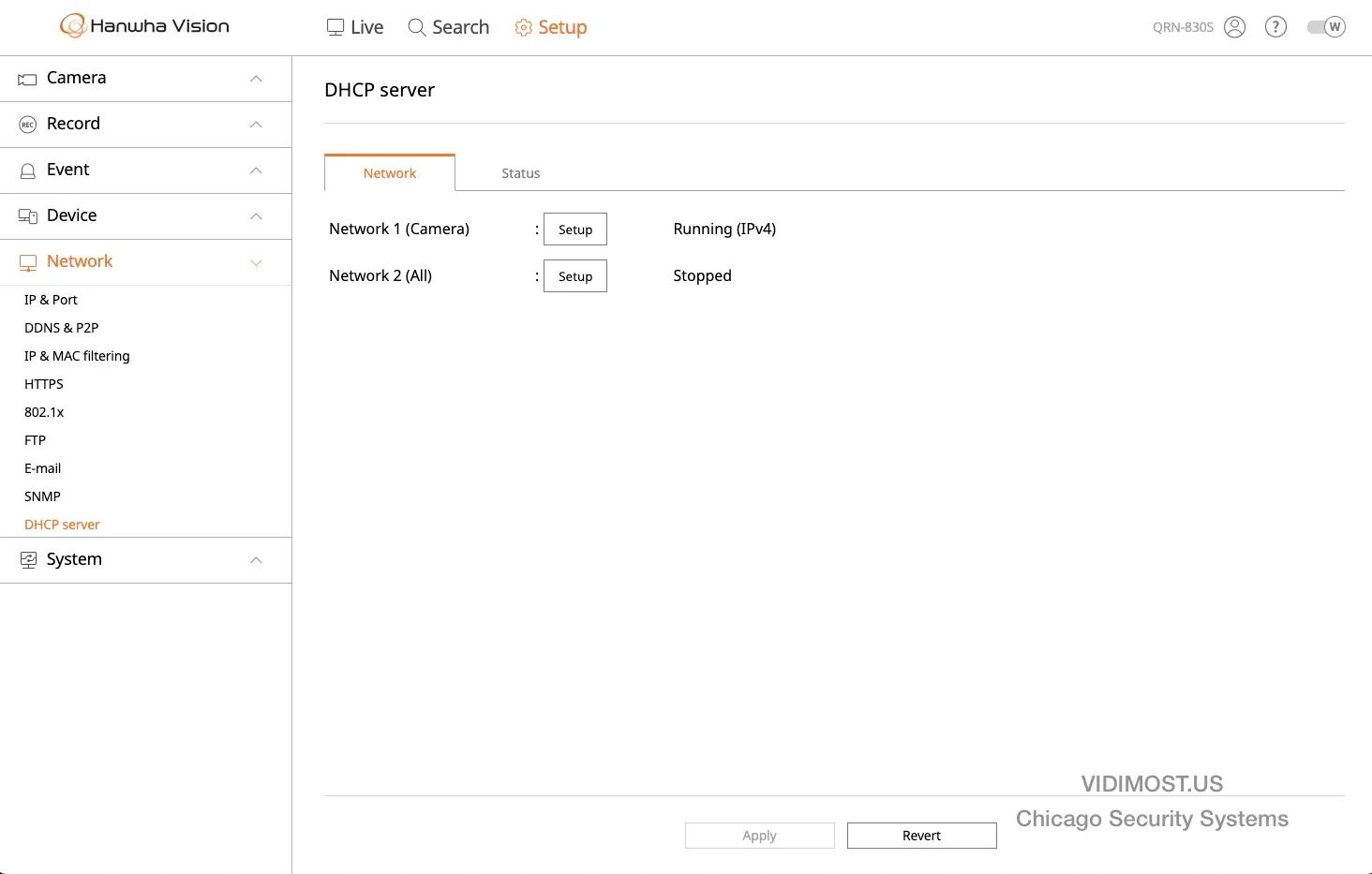
Network 1 (Camera / PoE side)
This is the camera network connected to the PoE ports. Keeping DHCP enabled here helps the NVR manage and discover cameras.
✅ Recommended: DHCP enabled for Network 1 (Camera).
Network 2 (Uplink / Internet side)
This connects to the customer router/LAN. In normal installs, the router provides DHCP (or you set a static/reserved IP for the NVR).
🚫 Recommended: DHCP disabled on Network 2 (don’t accidentally run a second DHCP server on the customer LAN).
Insert screenshot here (DHCP status):
Simple mental model:
- Network 1 = private camera LAN
- Network 2 = the building/home LAN
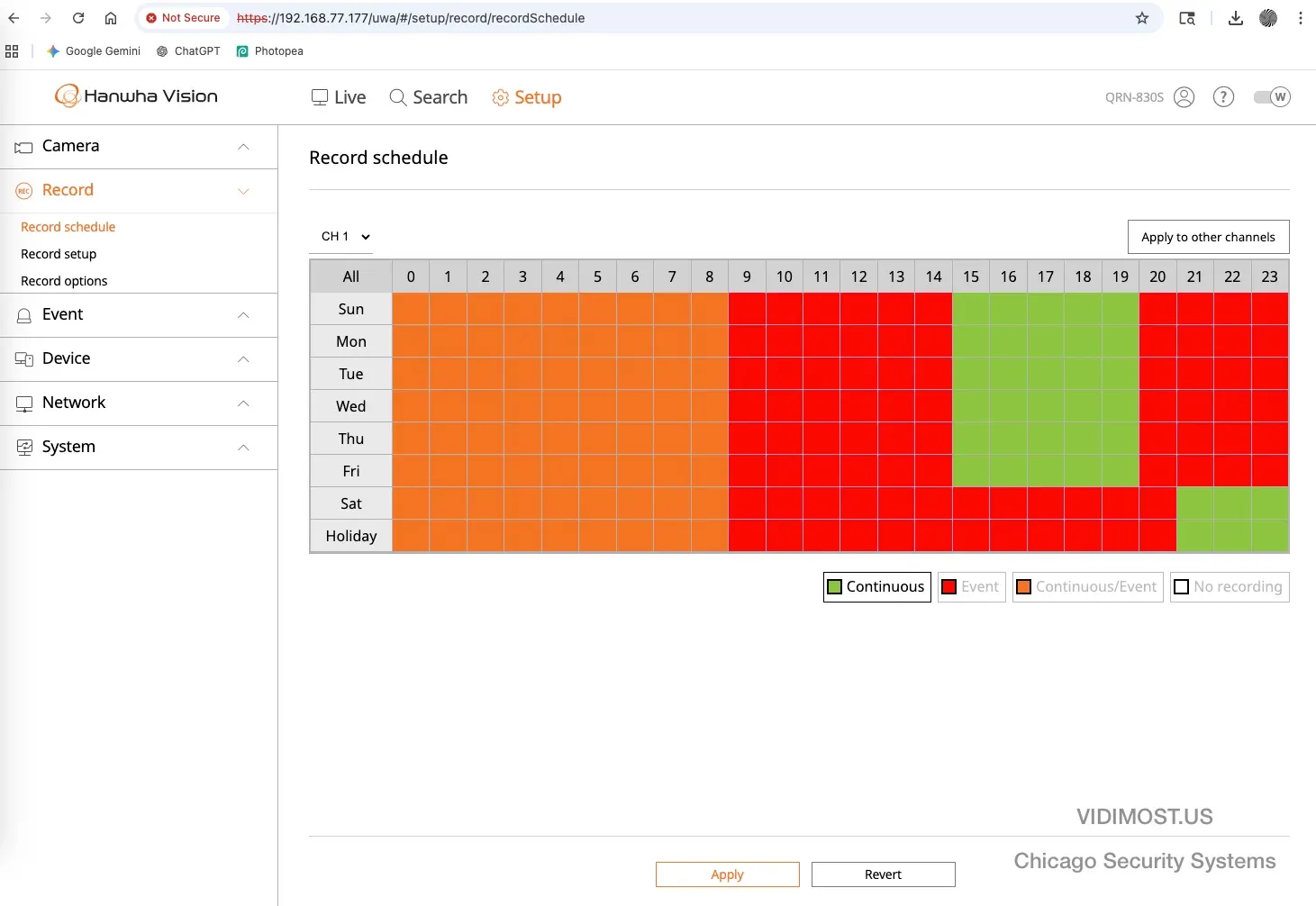
7) Recording schedules: mix continuous + motion/event any way you want
One of the strongest features of the QRN-830S platform is flexible scheduling. You’re not forced to pick “24/7 only” or “motion only.”
You can combine:
- Continuous recording during business hours
- Motion/Event recording after hours
- different rules per camera
Pro strategy: low-quality “always on” + high-quality only on events
A professional recording strategy we often use is:
- record a continuous low-bandwidth stream (so you always have context)
- and record the main stream at full quality only when motion/events happen
Why this works so well:
- you stay “in the middle of the story” — you see what led up to an incident
- you still get high quality when it matters (faces, plates, detail)
- you save storage while maintaining continuous awareness
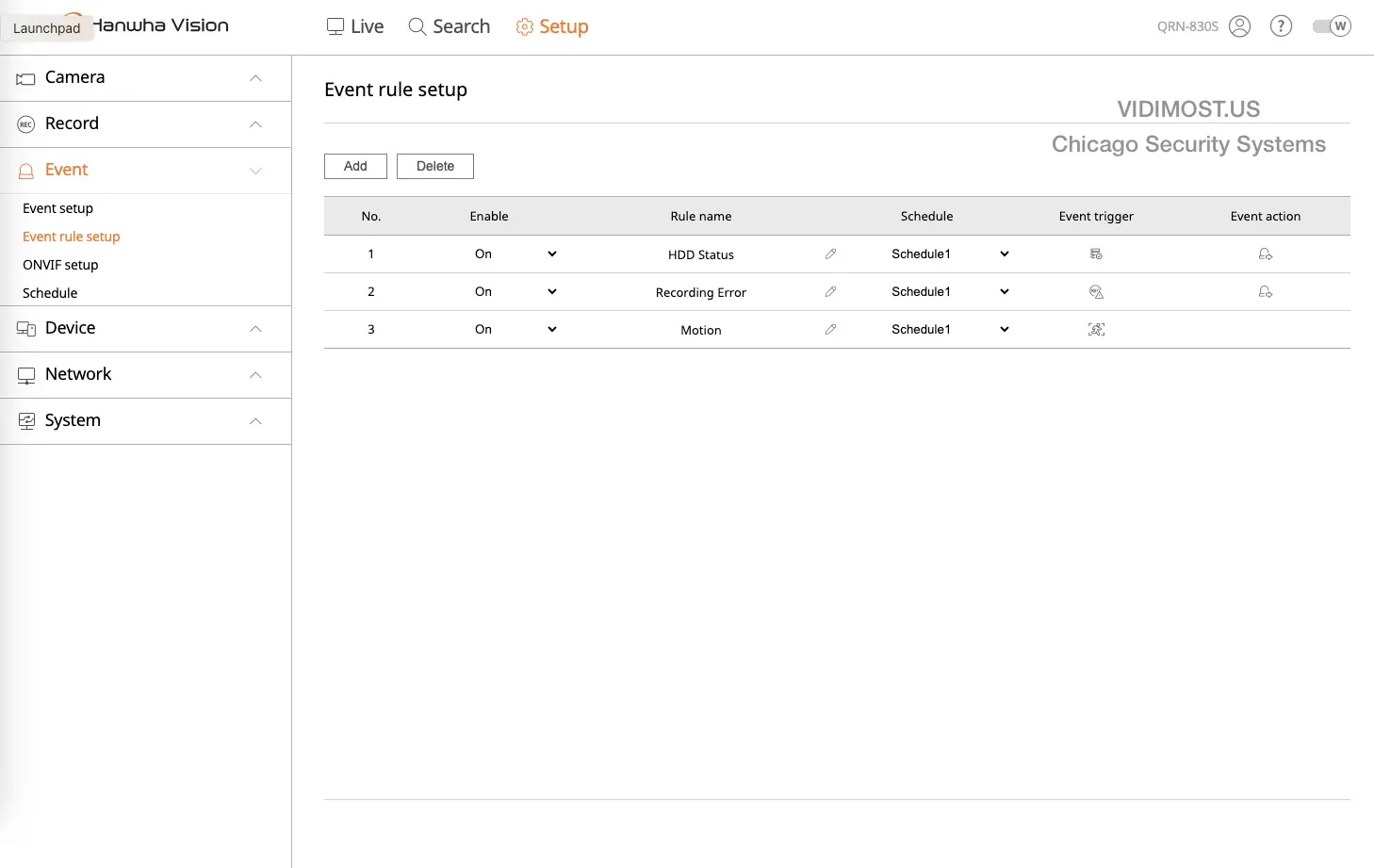
8) Event rules: enable health alerts so you catch failures early
Enable system health rules so the recorder tells you when something isn’t right:
- HDD status warnings
- recording errors
- motion/event triggers (as needed)
9) Monitor limitation: output is Full HD (1080p)
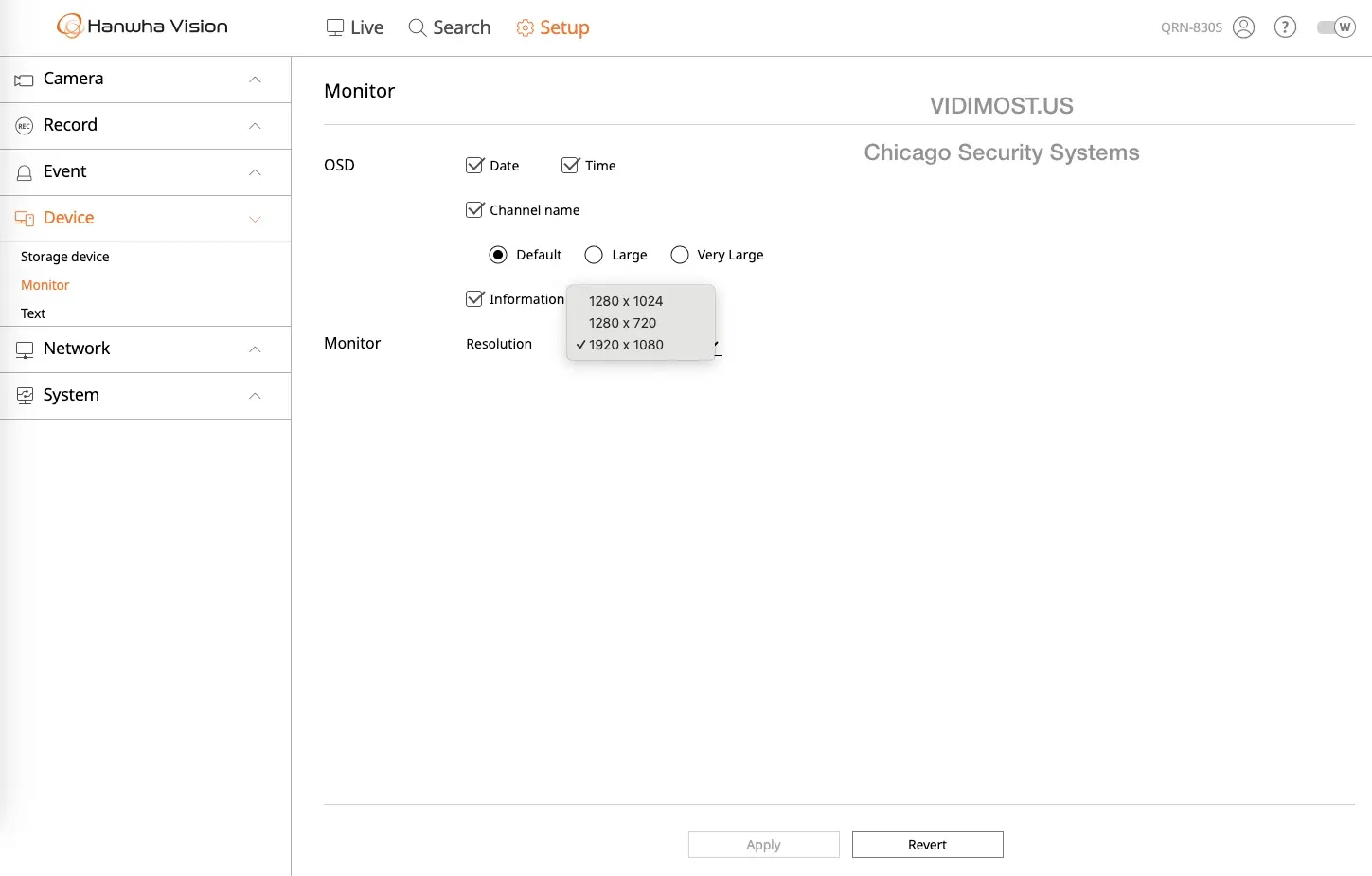
The QRN-830S is an excellent budget recorder, but keep this limitation in mind:
- It’s designed around 1080p output.
- Higher-end models handle high-resolution displays more elegantly.
10) QR P2P remote access: scan QR code and you’re in (no router setup)
One of the best quality-of-life features for Chicago home/SMB installs is P2P QR setup for remote viewing.
How it works (typical workflow):
- Open the Wisenet mobile app
- Tap Add device (“+”)
- Choose P2P / QR
- Scan the QR code displayed on the recorder
- Enter your username and password
- You now have remote access (no port forwarding required)
This is a huge advantage for quick deployments because you don’t need to mess with complex router settings or NAT rules.
Insert screenshot here:
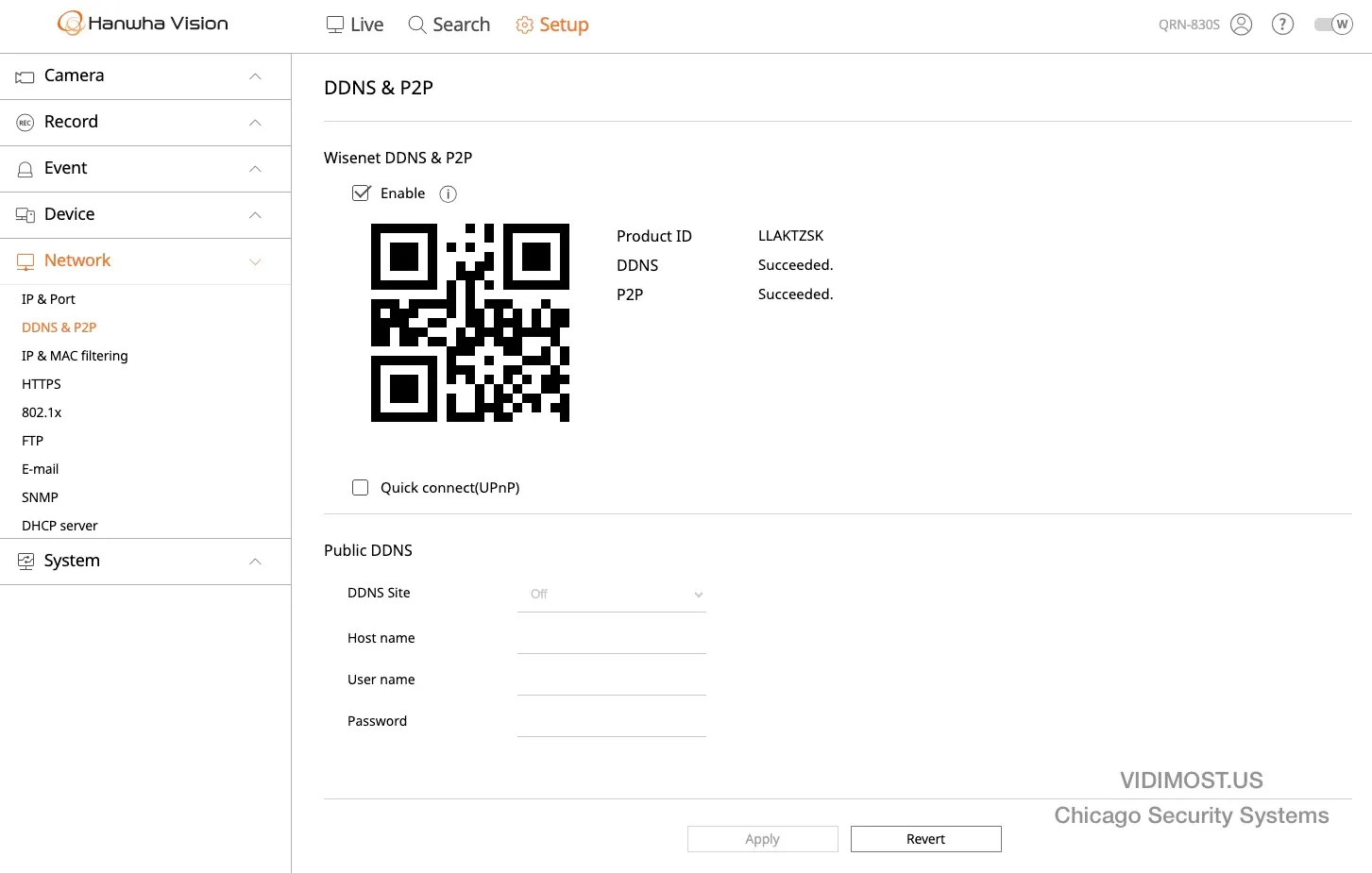
Hanwha QRN-830S DDNS and P2P settings showing QR code connect for remote accessSecurity tip: Use strong passwords and consider creating a limited-permission user for family/staff instead of sharing the admin login.
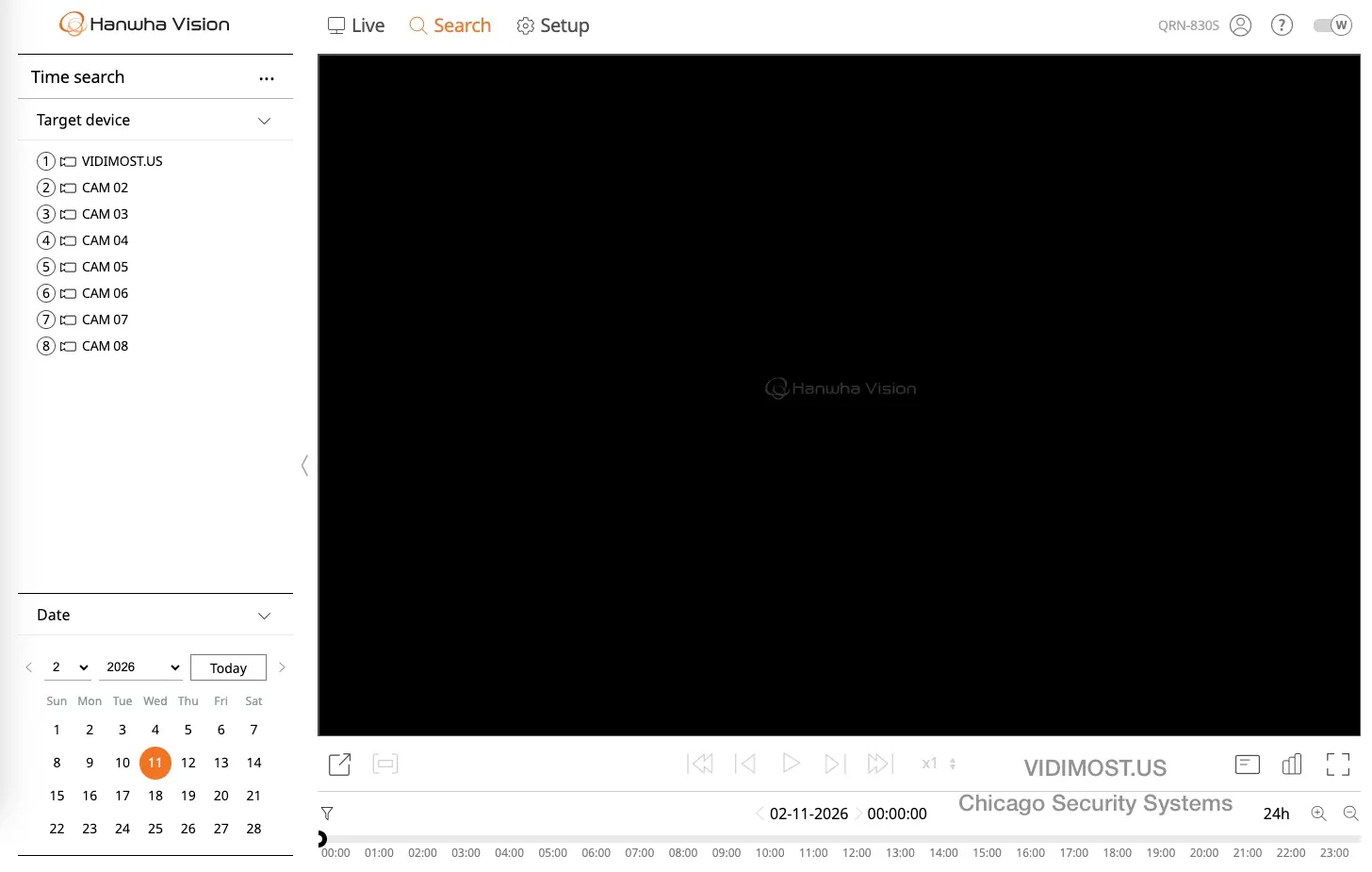
11) Playback and time search (confirm everything is working)
After setup, always test:
- live view
- playback
- time search
Insert screenshot here:
Who should buy the QRN-830S?
This is one of the best “budget pro” choices for:
- Chicago homes that want reliable local recording without subscriptions
- small businesses that need dependable footage and simple remote access
- systems where you want expandability (start with 4 cameras, grow later)
If you need advanced enterprise features, large 4K display walls, or complex multi-site management, you may want a higher-tier model—but for the majority of home/SMB installs, this unit is a very smart pick.
A local NVR system means fast playback, dependable recording, and no mandatory subscriptions. We’ll plan coverage, install, and configure everything—so it just works.
Comments ()