How to Reset a Hanwha Wisenet IP Camera Password and Factory-Reset the Camera
A Chicago-focused, step-by-step guide to reset a Hanwha Wisenet IP camera password and perform a safe factory reset—so you can regain access, reconfigure the camera, and get your system back online.
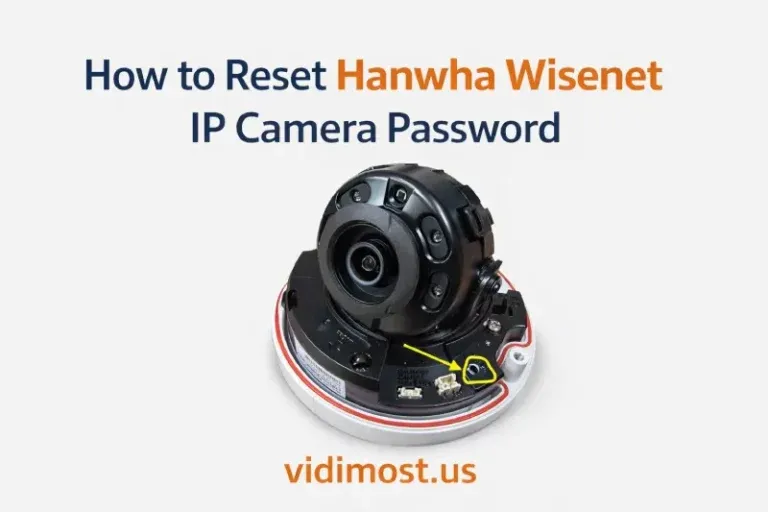
If you forgot the admin password for a Hanwha Vision (Wisenet) IP camera, the most reliable recovery method is a factory reset, followed by creating a new admin password.
This step-by-step guide is based on two popular models you’ll commonly see in the field:
- Hanwha QNO-8010R (bullet)
- Hanwha QNV-8010R (vandal dome)
I’m also including a critical real-world tip installers learn the hard way: always confirm the camera by MAC address before you reset, because people often reset the wrong unit when multiple cameras are connected.
This guide is written for US installs and is especially useful for Chicago and the Chicago suburbs, where multi-camera systems in condos, small businesses, and multi-tenant buildings are common.
What you need (bench setup or onsite)
- PoE switch or PoE injector
- Laptop with Ethernet port (or USB-to-Ethernet adapter)
- Paperclip/pin (for a recessed reset) or small tool for an internal tactile button (model-dependent)
Default IP address when DHCP is not available
On a bench network with no DHCP server, many Hanwha/Wisenet cameras are reachable at:
Default IP: 192.168.1.100
Subnet: 255.255.255.0
If you’re setting this up on a workbench, set your laptop to:
- IP: 192.168.1.10
- Subnet mask: 255.255.255.0
Then open: http://192.168.1.100
Tip for service calls: This is a fast way to recover cameras when you don’t know the site’s network plan yet.
Before you reset anything: confirm the camera by MAC address (don’t reset the wrong unit)
In real installs (especially condos and businesses with multiple cameras), a very common mistake is resetting the wrong camera. If several cameras are plugged into the same PoE switch, people often press RESET on a unit they thinkis the right one—but it isn’t.
Always verify by MAC address first.
How to verify the correct camera:
- Find the MAC address on the camera label (sticker on the body).
- Match that MAC address to what you see in the network:
- Your PoE switch client list (often shows MAC + port)
- Your router/DHCP client list
- A camera discovery tool that lists IP + MAC
- Only after you match the MAC, perform the reset.
Why this matters: Resetting the wrong camera can wipe settings on a working device and create downtime. In Chicago multi-unit buildings, that can mean multiple residents or tenants losing coverage until it’s reconfigured.
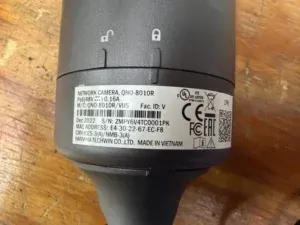
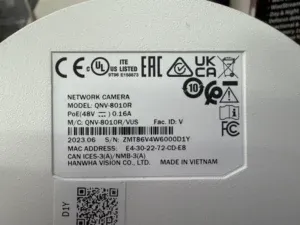
MAC address location at Hanwha IP Cameras
Factory reset overview (what it does)
A factory reset typically returns the camera to default settings and removes custom configuration such as:
- Users / passwords
- Network settings (static IP, ports, etc.)
- Stream settings / profiles
- Event rules, alerts, analytics configuration
After reset, you will need to:
- Access the camera again (often at 192.168.1.100 when no DHCP), and
- Set a new admin password during initial setup.
Reset instructions by model
Model A: Hanwha QNO-8010R (Bullet) — internal tactile RESET button
On the QNO-8010R, the reset is a small internal tactile button on the camera’s internal board (it’s not a simple external pinhole like many other brands).
Steps (QNO-8010R):
- Power the camera via PoE and wait until it fully boots (1–2 minutes).
- Open the camera enough to access the internal board (as shown in the photo).
- Press and hold the RESET tactile button for about 5–10 seconds.
- Release and wait for the camera to reboot.
- If DHCP is not present, browse to http://192.168.1.100.
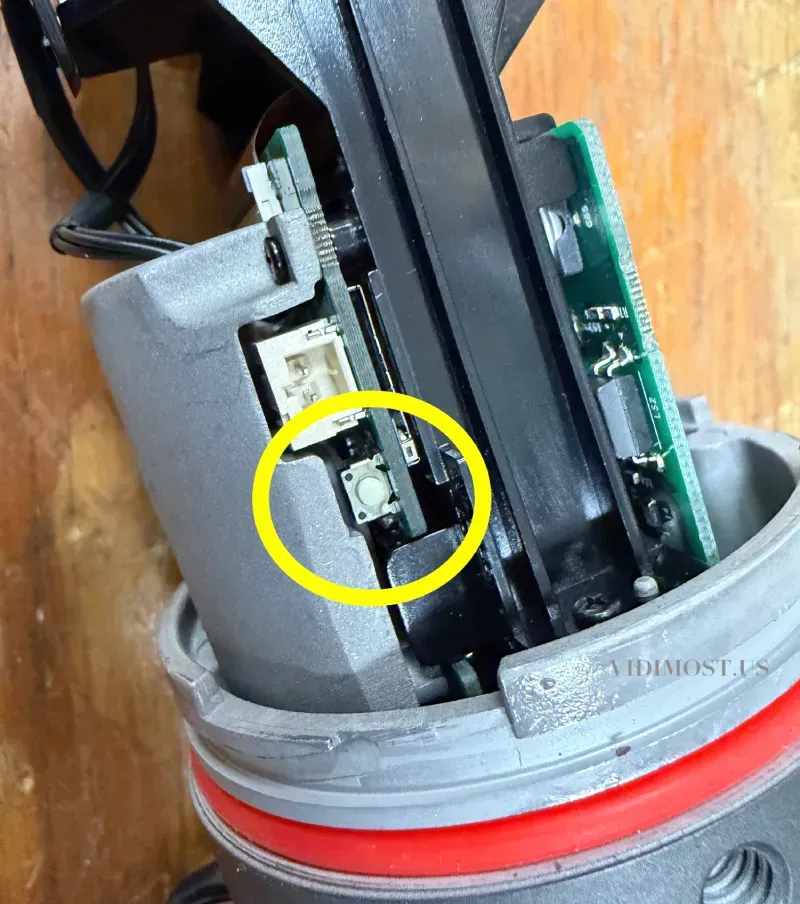
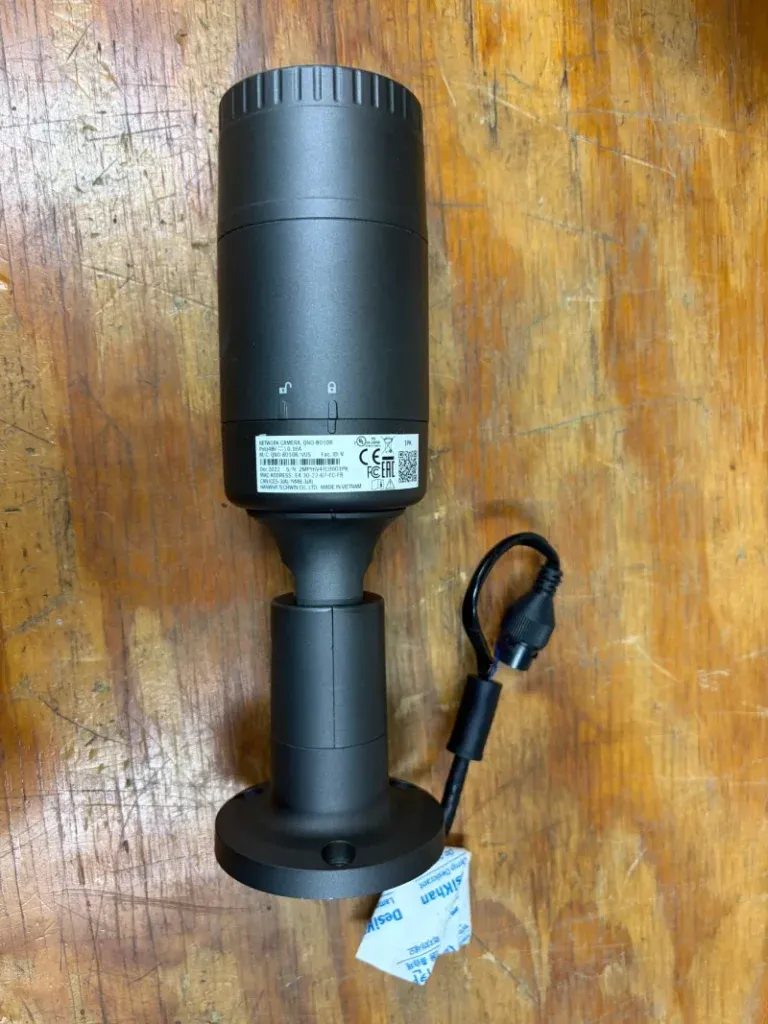
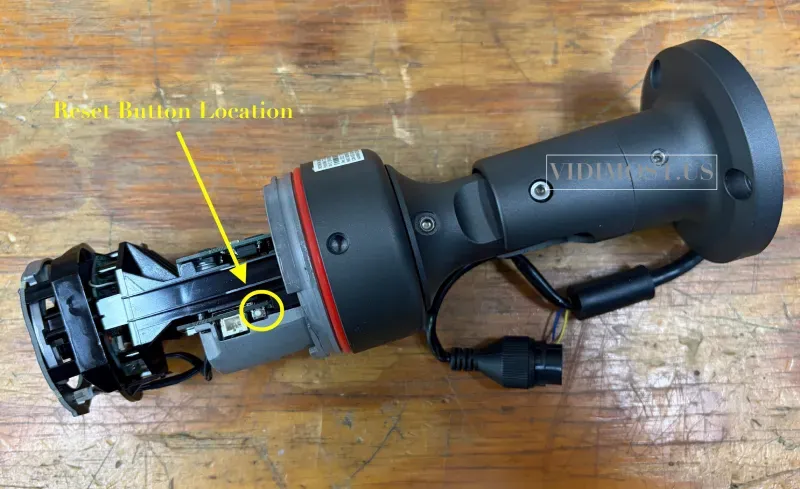
Reset button location
Model B: Hanwha QNV-8010R (Vandal Dome) — recessed pinhole RESET near Alarm/Video connectors
On the QNV-8010R dome camera, the reset is a recessed pinhole labeled “RESET,” located near the Alarm I/O and Video connectors.
Steps (QNV-8010R):
- Power the camera via PoE and wait until it fully boots (1–2 minutes).
- Insert a paperclip/pin into the RESET pinhole.
- Press and hold for about 5–10 seconds.
- Release and wait for the camera to reboot.
- If DHCP is not available, browse to http://192.168.1.100.

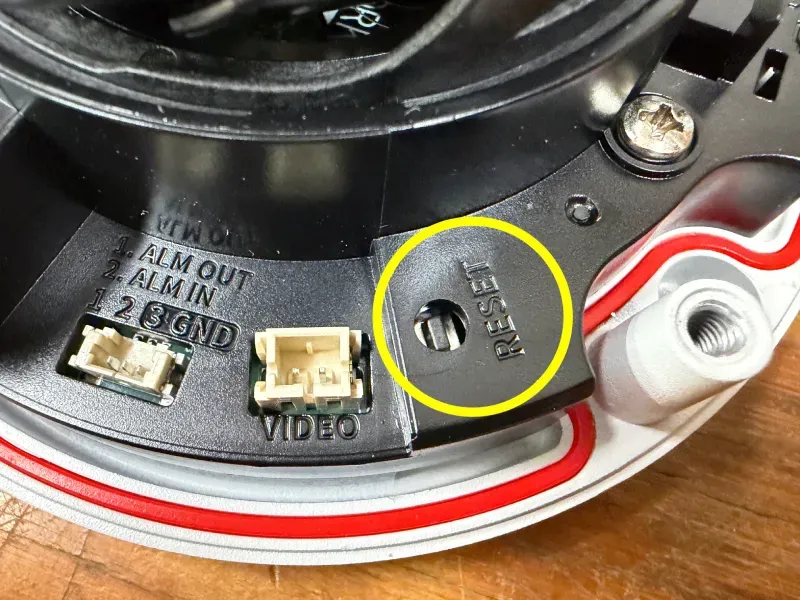
Reset button location at Hanwha dome cameras
After reset: set a new admin password (and secure it)
Once the camera reboots, open the camera in your browser and you’ll be prompted to create a new admin password.
Recommendations (best practice):
- Use a strong password (12–16+ characters)
- Store it in a secure password manager
- For businesses/HOAs: use a documented handoff process so the next manager doesn’t get locked out
Troubleshooting (fast)
Can’t open 192.168.1.100?
- Confirm your laptop is set to 192.168.1.x / 255.255.255.0
- Try another cable / PoE port
- Give the camera a full 2 minutes to boot
- If you have a PoE switch with a client list, confirm the camera is actually online (and confirm MAC)
Reset didn’t work
- Hold the reset button longer (up to ~10 seconds)
- Make sure the camera is fully powered and has completed booting
- Confirm you are pressing the correct reset (especially on the QNO internal board)
Chicago-area note (why this guide matters)
In Chicago and nearby suburbs (Evanston, Skokie, Wilmette, Winnetka, Glenview, Oak Park, etc.), cameras are often installed in:
- Condo buildings / multi-tenant properties
- Small businesses with multiple PoE cameras
- Mixed vendor systems where documentation is incomplete
That environment is exactly where people accidentally reset the wrong unit. MAC verification + proper reset stepssaves time and avoids downtime.
Quick FAQ
Is there a default Hanwha/Wisenet password?
Most modern installs rely on creating a password during setup. If you don’t have it, a factory reset + new password setup is the practical recovery path.
Will a reset erase everything?
A factory reset typically clears configuration and requires re-setup.
What is the default IP when DHCP isn’t available?
Often 192.168.1.100, which is why setting your laptop to 192.168.1.10 on a bench network is so useful.
Need help in Chicago?
If you’re in the Chicago area and want help with Hanwha/Wisenet camera resets, secure credential management, network design (VLANs, PoE switching), and full system verification, visit vidimost.us


Comments ()