Paxton Net2 Plus Reset Guide
Paxton Net2 Plus controllers (ACUs) are dependable, but in the real world you’ll eventually run into one that won’t detect, has an unknown IP address, or needs to be recommissioned after a server or network change.
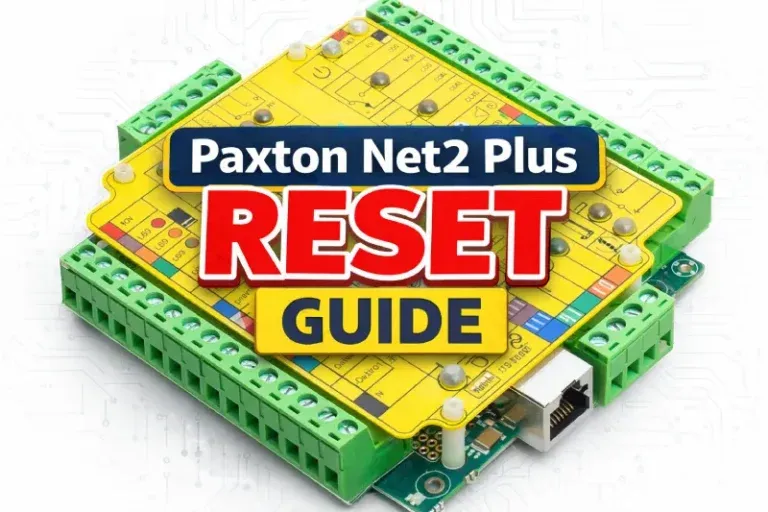
Two reset types explained: TCP/IP Reset (DHCP only) vs Complete Reset (Factory Default + DHCP)
Paxton Net2 Plus controllers (ACUs) are dependable, but in the real world you’ll eventually run into one that won’t detect, has an unknown IP address, or needs to be recommissioned after a server or network change. The key to fixing this fast (and safely) is understanding that Net2 Plus has two different reset modes—and they do very different things.
This guide covers:
- ACU TCP/IP Reset (DHCP Reset) — resets only the Ethernet/IP settings and returns the unit to DHCP
- ACU Complete Reset (Factory Default) — wipes controller data/settings and returns the unit to DHCP
- How to re-detect the controller properly after DHCP changes
- How to recover communication using a direct PC connection when the controller won’t detect
- Practical troubleshooting notes for reader/keypad issues
These steps apply anywhere.
If you’re in Chicago or the suburbs (especially condos/HOAs and managed buildings), consider having a specialist do the reset and recovery—because the wrong reset can erase configuration and cause downtime.
Quick overview: which reset do you need?
1) ACU TCP/IP Reset (DHCP Reset — network only)
Use this when:
- The controller IP is unknown or wrong
- The controller was set to a static IP that doesn’t match the current network
- The unit “disappears” after network changes
- You want the controller to go back to DHCP without wiping door data
- What it changes: Ethernet/IP settings only
What it keeps: Stored controller data (door-related data/config remains on the ACU)
2) ACU Complete Reset (Factory Default — wipes everything)
Use this when:
- You need a true “start over” (takeover, recommissioning, unknown configuration)
- The controller’s stored data/settings must be cleared
- You want to clear both controller data and IP settings back to DHCP
- What it changes: Deletes data stored on the ACU + resets IP settings
- What it keeps: Nothing (assume you must rebuild/restore configuration)
- Important compatibility note: The Complete Reset is available only on certain Net2 Plus units (serial number 1725515 and above) and typically requires firmware v4+.
Before you touch anything (2-minute safety checklist)
Confirm you’re working on the correct door/controller.
- Check the controller OK LED:
- A steady “heartbeat” flash typically means the ACU is alive.
- Plan to test after changes: reader, lock output, REX, door contact, schedules, and monitoring.
- On multi-controller sites, work on one ACU at a time to avoid confusion and downtime.
Reset Mode 1: ACU TCP/IP Reset (Return to DHCP without wiping controller data) - This is the “DHCP reset” for the Ethernet interface.
What it does
Resets the Ethernet parameters and returns the unit to DHCP
Does not remove data stored on the ACU (it’s a network reset, not a factory wipe)
Reset Mode 1: ACU TCP/IP Reset (Return to DHCP without wiping controller data)
This is the “DHCP reset” for the Ethernet interface.
What it does
- Resets the Ethernet parameters and returns the unit to DHCP
- Does not remove data stored on the ACU (it’s a network reset, not a factory wipe)
Steps (TCP/IP Reset)
- Power down the Paxton Net2 Plus unit.
- Disconnect the reader on Reader Port 2.
- Link the following terminals on Reader Port 2: Brown (Red LED) ↔ Mauve (Media Detect)
- Power up the unit again. The OK LED will flash fast for a few seconds.
- When the OK LED returns to a steady heartbeat, the IP settings are reset to DHCP.
- Remove the link and reconnect the reader.

What to expect next
After this reset, the controller may receive a new IP address from DHCP. You’ll often need to detect it again using the Server Config Utility.
Pro tip: If the site is stable and managed, the best long-term fix is a DHCP reservation (recommended) or a documented static IP. In Chicago-area condo/HOA networks, this prevents repeated “it disappeared again” service calls.
Reset Mode 2: ACU Complete Reset (Factory Default — clears data + returns to DHCP)
This is the true “Factory Default” option.
What it does
- Clears the data stored on the ACU
- Clears IP settings and returns the controller to DHCP
- You should assume the door must be re-detected and configuration restored
Steps (Complete Reset / Factory Default)
- Power down the Net2 Plus unit.
- Disconnect the reader on Reader Port 2.
- Link the following terminals on Reader Port 2:
Green (Green LED) ↔ Mauve (Media Detect) - Power up the unit again. The OK LED will flash fast for a few seconds.
- When the OK LED returns to a steady heartbeat, the unit has completed the reset.
- Remove the link and reconnect the reader.

What to expect next
After this reset, the controller may receive a new IP address from DHCP. You’ll often need to detect it again using the Server Config Utility.
Pro tip: If the site is stable and managed, the best long-term fix is a DHCP reservation (recommended) or a documented static IP. In Chicago-area condo/HOA networks, this prevents repeated “it disappeared again” service calls.
DHCP vs Static IP: what’s best practice?
Yes, the Net2 Ethernet interface supports DHCP. However, for reliability:
- Prefer a DHCP reservation (best mix of stability + simplicity), or
- Use a documented static IP if required by the client’s IT policy
Why it matters: Some DHCP servers can issue different addresses after restarts, and that can force manual re-detection and wasted troubleshooting time.
Recovery: Net2 Plus TCP/IP direct PC connection (when the controller won’t detect)
If the controller won’t detect and you don’t know its IP address, a direct connection can recover access quickly.
What happens without DHCP
Without a DHCP server, the unit may default to an address in the range 169.254.x.x.
Steps (Direct PC connection)
- Connect the network interface directly to your PC/laptop Ethernet port.
- On Windows, check your PC IP with
ipconfig. - Detect the TCP/IP interface using the Net2 Configuration Utility.
- Change the interface IP address to match your PC subnet. Example:
- If your PC is 192.168.10.7, set the interface to 192.168.10.8
- Once the interface is in the same range as the PC, Net2 should communicate with it normally.
Important note: Do not change your PC IP address to 169.254.x.x for this workflow.
Troubleshooting: Readers/Keypads not working (fast checklist)
If the controller is online but the reader/keypad isn’t working:
- Software settings: Confirm the reader/keypad settings are correct
- Connections: Check wiring and connector integrity; if possible test the reader on the other port
- Cable: Use appropriate cable types for extensions; avoid improper alarm cable for data runs
- Supply voltage: Confirm voltage is within specification (measure at the device)
- Test credential: Verify the token/fob used for testing works on a known-good reader
- Interference: Test the reader “in hand” and confirm no local RF interference (avoid mounting readers back-to-back)
FAQ (Questions & Answers)
Will the database be erased during the Complete Reset / Factory Default?
Yes. A complete reset clears stored data and settings on the ACU. It’s not just a DHCP reset.
Will the TCP/IP Reset delete users or door settings stored on the controller?
No. TCP/IP Reset is intended to reset only Ethernet parameters (DHCP). It does not remove ACU data.
After resetting to DHCP, why can’t I find the controller?
Because DHCP may assign a new IP address. Use Server Config Utility (or the Net2 utilities) to detect it again, then create a DHCP reservation.
Which reset should I try first?
If you’re only troubleshooting IP/addressing, start with the TCP/IP Reset (DHCP-only). Use Complete Reset only when you’re ready to rebuild and restore configuration.
Should I do a factory default on a live building system?
Only if you’re prepared for downtime and full restoration. If you’re not confident, it’s safer to involve a professional—especially in multi-tenant buildings.
Need help with Paxton Access Control System? (Call / Text / Contact form)
If you need help with a Paxton Net2 Plus controller reset, detection issues, or long-term network stability:
- Call/Text: (872) 254-5015
- Email: [email protected]
- Or submit a request on the Contacts page at vidimost.us
In the Chicago area or suburbs? I can troubleshoot on-site, restore service quickly, and leave the site with stable addressing (DHCP reservation/static IP) and clear documentation.
Comments ()