What to Do If Someone Loses Their Key Fob or Access Card (Brivo, Paxton, 2N) — Chicago Guide
A Chicago-focused guide for HOAs, condos, offices, and warehouses: what to do when someone loses a key fob or access card in Brivo, Paxton, or 2N—fast, secure, and properly documented.
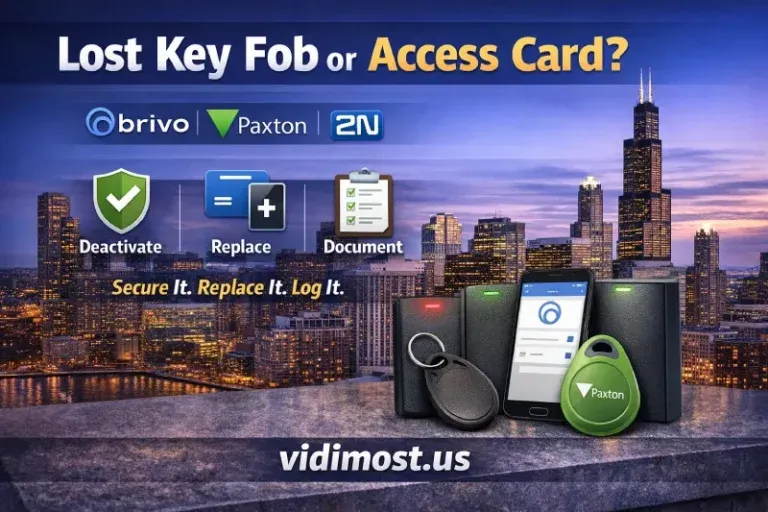
In Chicago-area apartments, condos, and commercial buildings, a lost key fob/access card is a security incident, not just an inconvenience. The biggest advantage of electronic access control is simple: you can deactivate the lost credential immediately in software, so it can’t open doors anymore—unlike a lost metal key.
Below is a practical “do-this-now” workflow, rewritten specifically for Brivo, Paxton, and 2N.
The universal rule
Deactivate first. Replace second. Document always.
- Verify identity (resident/employee/vendor)
- Deactivate the lost credential in the system software
- Issue a new credential (new fob/card or mobile)
- Test + log the change (doors/garage/elevators, if applicable)
Brivo: lost fob/card (cloud-first workflow)
Brivo is built for remote management—ideal for Chicago multi-tenant buildings where management isn’t always on-site. Brivo specifically highlights the ability to add/remove user credentials and review events from the mobile app.
Steps (recommended)
- Open Brivo Access (web or mobile).
- Go to Users → find the person.
- Remove / unassign the lost card from that user (deactivate that credential).
- Brivo’s knowledge base shows where admins access the card list under Users → Credentials → Cards.
- Issue a replacement credential (new card/fob or mobile credential).
- Confirm access (test at main entry + any special areas).
Best-practice notes for Brivo (Chicago buildings)
- Do it immediately—cloud control means you don’t need to wait for someone to be on-site.
- If you use mobile credentials, replacements can be faster than printing/badging physical cards (depends on building policy and configuration).
Paxton Net2: lost token/card (very clear “Mark as lost” process)
Paxton documentation is refreshingly direct: marking a token as lost immediately bars it from all doors, and attempts generate a Lost Token event (no access granted).
Steps (Net2)
- Open the user’s record
- Go to the Tokens (or Credentials) tab
- Select the token → click Lost token / Mark as lost
- Paxton’s guide states this blocks the token immediately system-wide.
- Issue a new token to the user
- If the old one is found later, you can use Found token to reactivate (optional).
Best-practice notes for Paxton
- “Mark as lost” is usually better than deleting right away, because it preserves history and makes “found later” easy.
- If you truly want it gone, Paxton also supports deleting tokens from the database.
2N: lost credentials (cards + Mobile Key)
2N commonly appears in Chicago properties as intercom + entry (2N IP Verso/Style, Access Units) and can be managed via 2N Access Commander and/or My2N depending on deployment.
If the lost credential is a mobile phone / Mobile Key
2N’s manuals explicitly recommend: delete the “Mobile Key Auth ID” for that user to block the lost phone, and optionally regenerate the primary encryption key.
Steps (Mobile Key loss)
- Find the user in your 2N management (Access Commander / device directory)
- Delete the Mobile Key Auth ID (blocks that phone)
- Optionally re-generate the primary encryption key (extra precaution)
- Re-issue access to the user’s new phone (re-pair)
If the lost credential is a card/fob
In 2N Access Commander, users can have card IDs assigned (“Card Numbers”), and the system supports deleting users during synchronization (“Is Deleted”).
Practical approach
- Remove the card number(s) from that user (deactivate that credential), then assign a new card.
- If your workflow requires it, you can remove the user record entirely (depends on how you sync and manage directories).
Comparison table (Brivo vs Paxton vs 2N) — handling lost credentials
| Platform | Fast “kill switch” for lost credential | Best-fit for Chicago property management | Notes |
|---|---|---|---|
| Brivo | Remove/unassign credential in Brivo Access; supports managing credentials and events from mobile | Excellent for remote management across multi-tenant sites | Brivo emphasizes mobile/admin control to add/remove credentials. |
| Paxton Net2 | Mark token as lost → immediately barred on all doors + Lost Token event | Strong on clear ops + audit trail | Paxton explicitly documents “Mark as lost” flow. |
| 2N | For Mobile Key: delete Mobile Key Auth ID; for cards: remove Card Numbers / update user | Great when 2N intercom + entry ecosystem is central | Manuals explicitly cover lost phone procedure; Access Commander supports card IDs per user. |
FAQ (quick answers)
Will the old fob/card still work after deactivation?
No—once removed/marked lost in the software, it should not grant access. Paxton explicitly states lost tokens are barred from all doors and generate events if presented.
Should I disable the whole user account?
Usually no. Disable the credential, not the person—unless it’s termination/eviction/high risk.
What if we don’t know which credential they lost?
Disable all credentials on that user temporarily, then re-issue only the one they should have.
What about lost phones using 2N Mobile Key?
Delete the Mobile Key Auth ID for that user (blocks the lost phone).
If you manage an HOA/condo, office, or warehouse in the Chicago area and want a clean, fast process for lost fobs/cards—plus proper logs, permissions, and remote admin—we can set it up the right way.
Vidimost LLC — Access Control for HOA, Condos & Businesses in Chicago
Comments ()